
Apex Launcher
Screenshots
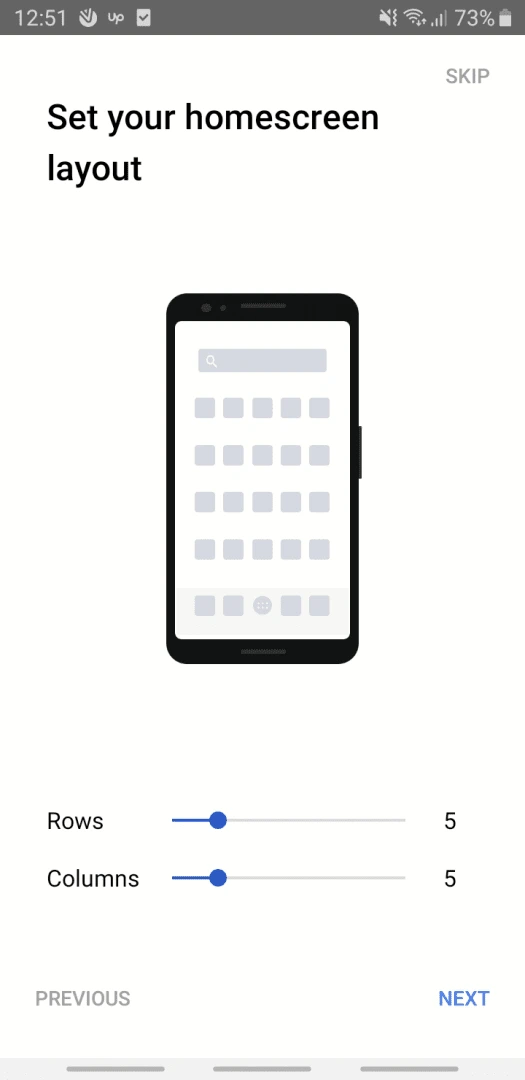
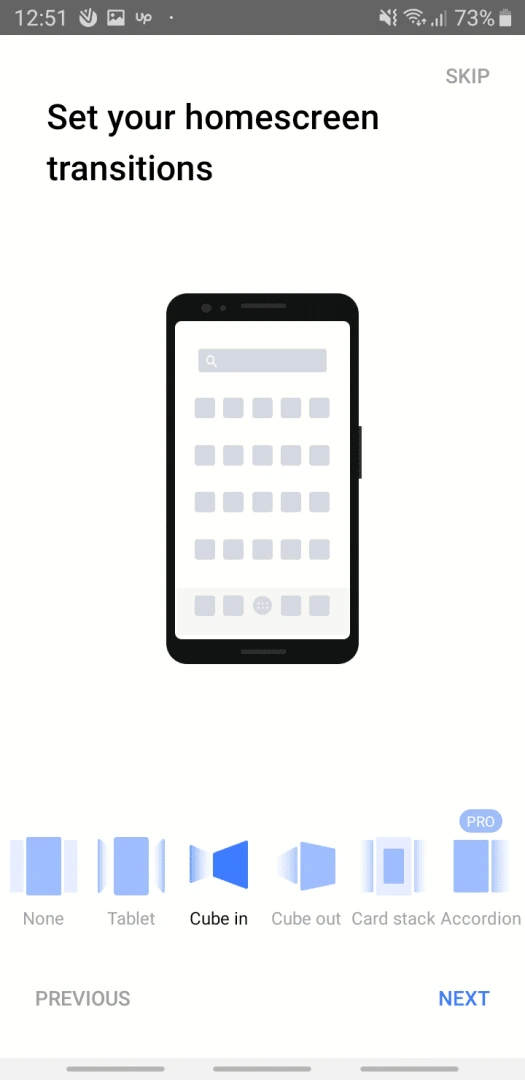
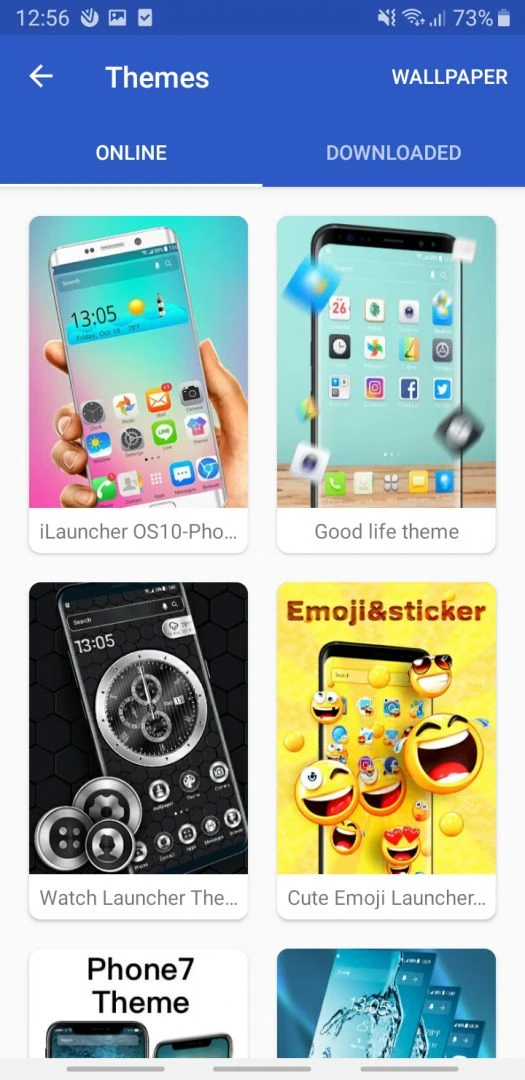
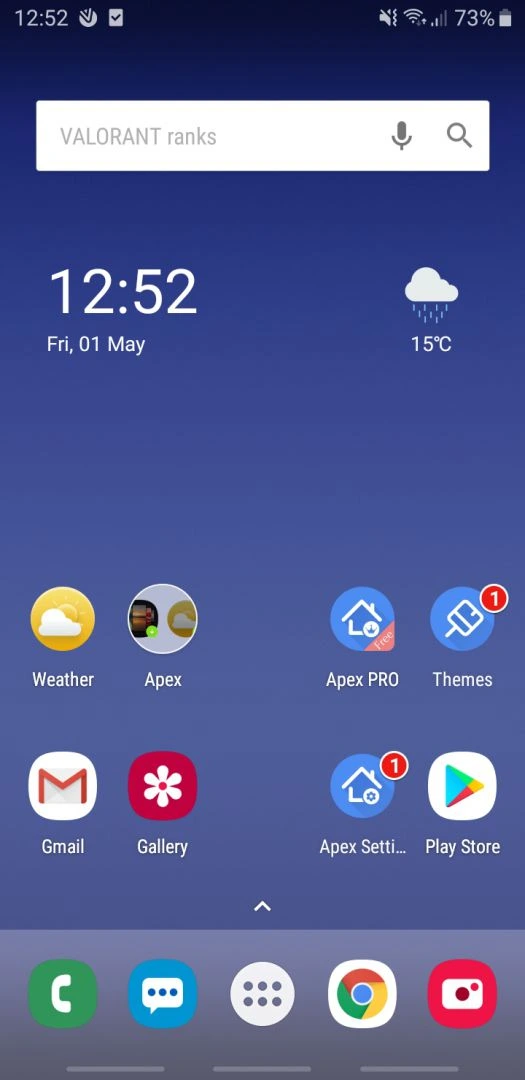
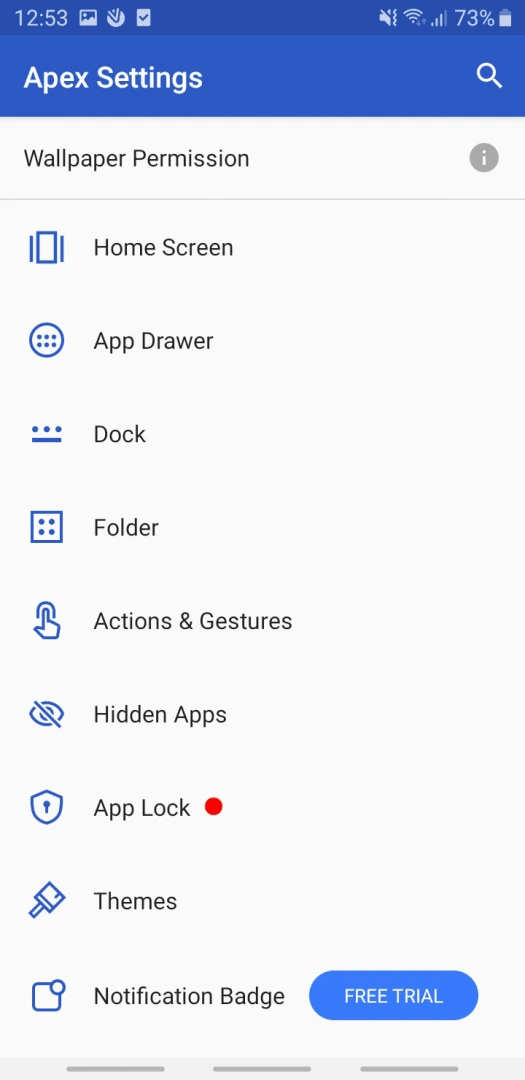
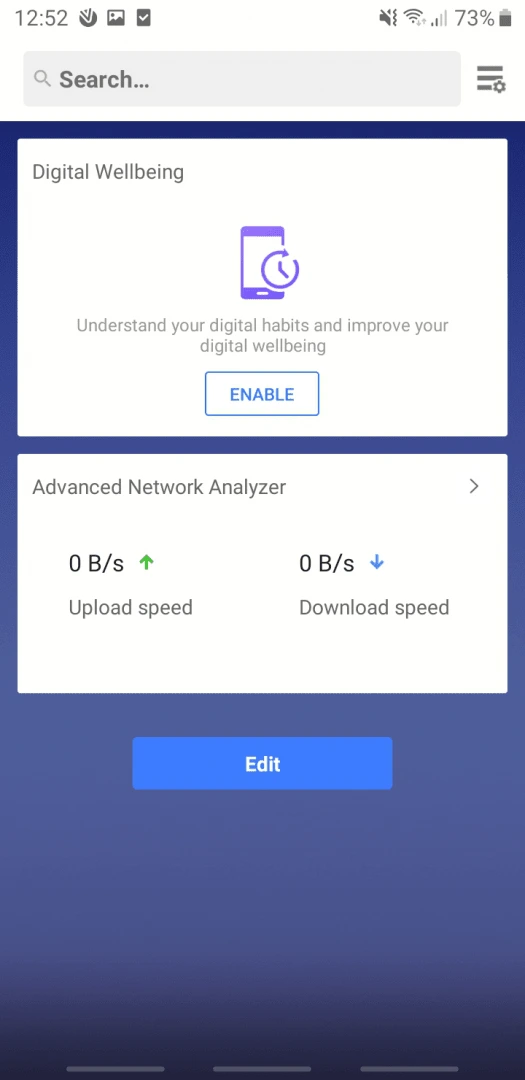
Apex Launcher is a smart and customizable Android launcher designed to give your phone a fresh, fast, and organized look. It replaces your default home screen with a powerful, feature-rich interface that you can fully control. With Apex Launcher, you can personalize your Android experience exactly the way you like — from icons and themes to gestures and transitions.
This app is perfect for users who want both beauty and performance. It helps you organize your apps, boost phone speed, and enjoy a clean layout. Whether you prefer a minimal design or a dynamic setup, Apex Launcher lets you transform your Android home screen quickly and easily.
What is Apex Launcher? A Smoother, Smarter Home Screen
Do you ever wish your phone’s home screen worked better for you? If so, you need to know about Apex Launcher.
In simple terms, an Android launcher is an app that controls your home screen, app drawer, and overall visual style. It’s the interface you use every day. Apex Launcher is one of the most popular choices for this.
So, why do millions of users choose Apex? Let’s explore its key benefits.
Why Choose Apex Launcher?
Apex Launcher stands out for three main reasons. It combines reliability with deep personalization.
1. It’s Built for Stability and Speed
First and foremost, Apex Launcher is known for its smooth performance.
- It runs reliably, even on older Android devices.
- The experience is fast and fluid, reducing lag.
- You get a consistent and dependable home screen every day.
2. It Offers High Customization
Furthermore, Apex gives you powerful tools to make your phone truly yours.
- Change app icons, home screen grids, and animation effects.
- Organize your app drawer with custom tabs and sorting.
- Enjoy deep personalization that isn’t confusing or overwhelming.
3. It’s Familiar, But Better
Most importantly, Apex enhances the standard Android experience you already know. It doesn’t force you to learn a completely new system. Instead, it feels like a supercharged version of your phone’s default look.
A Trusted Name in Android
Apex Launcher isn’t a new app. It has a long history as a top-tier alternative in the Android community. For years, it has been a go-to recommendation for users seeking a better home screen.
Final Thoughts: Is Apex Launcher for You?
In conclusion, Apex Launcher is an excellent choice if you want a faster, more stable, and highly customizable home screen. It builds upon the classic Android feel you’re comfortable with, while adding the powerful features you want.
Transform your phone from a standard device into a personal statement. Try Apex Launcher today.
Apex Launcher: Key Features & What You Can Do
Apex Launcher is one of the most powerful and customizable Android launchers available. It helps you take complete control of your home screen, app drawer, and phone layout.
Whether you want more speed, better organization, or just a fresh new look — Apex Launcher gives you everything in one lightweight app. Let’s explore its main features step by step.
Home Screen & Grid Customization
Your home screen is the heart of your Android experience, and Apex Launcher lets you tailor it exactly how you like.
Key Customization Options:
- Adjust grid size: Choose how many rows and columns appear on your screen. Add more icons or keep it minimal.
- Resize widgets freely: Make widgets fit perfectly, no matter their size.
- Customize icons and labels: Change icon size, hide labels, or rename apps for a clean layout.
- Infinite scrolling: Move smoothly across home screens, or choose a page-by-page setup for better control.
Tip: You can even lock your home screen layout to avoid accidental changes.
The Ultimate App Drawer
The app drawer in Apex Launcher is powerful, fast, and beautifully organized.
What You Can Do:
- Create tabs: Group apps into categories like Frequent, Games, or Downloaded.
- Hide apps: Keep personal or unused apps out of sight.
- Sort apps: Arrange them alphabetically, by installation date, or by most used.
- Smooth scrolling and effects: Enjoy buttery-smooth navigation with stylish animations.
This makes finding and managing apps faster and more enjoyable.
Gesture Controls – The Game Changer
Gesture controls are one of Apex Launcher’s most exciting features. They make your phone easier to use — especially with one hand.
Examples of Smart Gestures:
- Double-tap to lock or sleep your phone.
- Pinch to open notifications or quick settings.
- Swipe up to open the app drawer instantly.
- Swipe down to launch search or settings.
These gestures replace multiple taps and make navigation quick, smooth, and intuitive.
Pro Tip: Combine gestures with hidden shortcuts for a truly personal setup.
Apex Notifier – Never Miss a Beat
The Apex Notifier add-on keeps you updated without opening your apps. It shows small unread badges on icons, just like on iOS.
Supported Apps Include:
- SMS and Phone
- Gmail
- Facebook Messenger
- Email and Calendar
You’ll always know when you have a new message, call, or notification — right from your home screen.
Visual Flair: Themes & Icons
Apex Launcher makes your phone look fresh and unique with thousands of free and premium themes.
What You Can Customize:
- Apply icon packs directly from the Google Play Store.
- Change wallpapers and transitions for a personalized feel.
- Mix and match themes for a totally new visual style.
Example: A simple icon pack can completely change the way your home screen looks — from minimal and modern to colorful and creative.
Performance & Backup
Speed and stability are key strengths of Apex Launcher.
Performance Features:
- Lock home screen in memory: Prevents redrawing and keeps performance smooth.
- Fast animations: Enjoy responsive transitions without lag.
Backup & Restore:
- Save your entire setup — layout, themes, and preferences.
- Backup to cloud or SD card for quick recovery after updates or resets.
No need to rebuild your setup — restore it in seconds!
Final Thoughts
Apex Launcher is not just another launcher — it’s a full toolkit for Android customization. From gesture controls to advanced backup options, it helps you create a smooth, organized, and stylish experience.
If you love flexibility, speed, and control, Apex Launcher is one of the best choices on Android today.
How to Safely Download & Install Apex Launcher APK
Tired of your phone’s standard home screen? Apex Launcher is a powerful tool. It lets you customize your Android device. You can change icons, gestures, and the overall feel.
This guide will show you a safe way to download and install the Apex Launcher APK.
Important Note First: Apex Launcher is an older app. It is no longer available on the Google Play Store. Therefore, we must download it from a trusted third-party website.
Step 1: Prepare Your Android Device
First, you must allow installations from outside the Play Store. This is a simple one-time setting.
- Go to your phone’s Settings menu.
- Scroll down and select Security & Privacy (this may be called just “Security” on some devices).
- Look for the option called Install unknown apps or Special app access.
- Next, find your web browser (like Chrome or Firefox) in the list. Tap on it.
- Finally, toggle the switch to Allow from this source.
This step gives your browser permission to install the APK file.
Step 2: Download the Apex Launcher APK File
Now, you can get the installation file. It is crucial to use a reputable source for safety.
- Open your phone’s web browser.
- Visit “Filetomob.com” a well-known APK website.
- Use the search bar on the site to look for “Apex Launcher APK Download“.
- Choose the most recent version of the app to download. Tap the Download APK button.
- A confirmation pop-up may appear. Simply confirm the download.
Step 3: Find and Install the APK
Once the download is complete, you need to open the file.
- Pull down your notification shade. Tap on the completed Apex Launcher download file.
- Alternatively, open your Files or Downloads app. Locate the APK file there.
- Tap on the file to begin installation.
- Your phone will show an installation screen. Review the permissions the app requests.
- Then, press the Install button at the bottom.
The installation process will only take a few moments.
Step 4: Open and Set as Default Launcher
After installation, you will see an “Open” button. Tap it.
- Apex Launcher will immediately start. It will ask to be set as your default home app.
- Your phone will show a pop-up with launcher options. Select Apex Launcher from the list.
- Finally, tap Always to make it your permanent home screen.
Congratulations! Your new launcher is now active. You can begin exploring its many customization options.
Essential Safety Tips to Remember
Downloading APK files requires caution. Always follow these rules for security.
- Stick to Trusted Sites: Only use reputable APK providers like Filetomob.com.
- Check Permissions: Before installing, review what the app asks to access. If requests seem excessive, cancel the installation.
- Keep a Backup: It is wise to back up your important data before making major system changes.
In conclusion, installing Apex Launcher is a straightforward process. By following these steps, you can safely transform your Android’s interface. Enjoy your newly personalized phone
Your Simple Guide to Setting Up Apex Launcher
Step 1: Make Apex Your New Home Screen
Now, you need to tell your phone to use Apex.
- Press the Home button on your phone.
- A menu will pop up asking you to choose a launcher.
- Select “Apex Launcher.”
- Finally, tap “Always” to set it as your default. This means it will open every time you press Home.
Step 2: Take the Quick First-Tour
After you set it as default, Apex will start a short setup wizard.
- Simply follow the on-screen prompts.
- This tour will show you the new basics, like accessing your apps and widgets.
- It’s a great way to learn the layout quickly.
Step 3: Make Your First Custom Change
This is the fun part! Let’s make one simple change to see the power of customization.
A great first step is to apply a new icon pack. This changes the look of all your app icons at once.
- First, long-press on an empty area of your home screen.
- Then, tap on “Settings” or “Apex Settings.”
- Look for an option called “Icon Packs” or “Theme Settings.”
- You will see some pre-loaded options. Alternatively, you can visit the Play Store and search for “free icon packs” to find thousands more.
- Select one you like. Your icons will update instantly!
Congratulations!
You have successfully installed and started customizing your phone with Apex Launcher. This is just the beginning. Now, feel free to explore the settings and make your phone truly your own.
Apex Launcher vs. The Competition
Choosing a launcher is a personal decision. It defines your phone’s look and feel. So, how do you pick? Let’s see where Apex Launcher stands in a crowded market.
Apex Launcher’s Place in the Market
Apex Launcher strikes a careful balance. It does not force a radical new layout on you. Instead, it takes the familiar Android experience and supercharges it with powerful features. Think of Apex as a highly-tuned, customizable version of the home screen you already know.
Quick Comparison: Apex Launcher vs. The Rest
Apex Launcher vs. Nova Launcher
Nova Launcher is often the default choice for Android enthusiasts. It is a fantastic and powerful tool. However, Apex Launcher is a strong competitor with its own unique strengths.
- Nova’s Dominance: Nova is famous for its deep, granular customization. It is the go-to for users who want to tweak every little detail.
- Apex’s Alternative: Apex offers a slightly different user experience. It feels smooth and responsive out of the box.
- Key Differentiator: Many users praise Apex for its exceptional stability and reliable performance. Furthermore, it places a strong emphasis on gesture controls. You can assign a wide range of actions to swipes and taps, making your phone more efficient.
In short: If you want Nova-level power but value rock-solid stability and love using gestures, Apex is a perfect alternative.
Apex Launcher vs. Stock Launcher
Your phone comes with a stock launcher. It works, but it lacks personality. Switching to Apex Launcher is a massive upgrade.
Here’s what you gain:
- Total Customization: Change app icons, icon sizes, and grid layouts.
- Powerful Gestures: Use swipe actions to open apps or trigger commands.
- Advanced Features: Enjoy scrollable docks, notification badges, and extensive theme support.
- A Personal Touch: Make your phone truly yours, not just a generic copy of everyone else’s.
Ultimately, moving from a stock launcher to Apex is a leap in both functionality and personal expression.
Apex Launcher vs. Hyper-Stylish Launchers (Niagara, Smart Launcher)
Launchers like Niagara or Smart Launcher are brilliant. They reimagine the Android home screen with minimalist, list-based, or magazine-style layouts.
Apex Launcher takes a different approach:
- Paradigm Shift: Niagara and others offer a completely new way to interact with your phone.
- Familiar, But Better: Apex keeps the classic “app drawer + home screens” structure. It enhances this traditional layout without replacing it.
- The Best of Both Worlds: You get deep customization without a steep learning curve. It’s the ideal balance for users who want more power than the stock launcher but aren’t ready for a total interface overhaul.
Therefore, if you like the classic Android setup but crave more features, Apex is your balanced choice.
Conclusion: Who is Apex Launcher For?
So, is Apex Launcher the right choice for you? Let’s break it down.
Ultimately, Apex Launcher is for anyone who feels limited by their phone’s standard home screen. It replaces the “stock” Android experience with something faster, more secure, and far more powerful.
In short, it gives you back control.
The Ideal Apex Launcher User
If you see yourself in the following profiles, Apex Launcher will feel like a perfect fit.
1. The Tinkerer
Do you love personalizing every detail? Then, you are a Tinkerer.
- You enjoy spending time in settings menus.
- You want to adjust icon sizes, grid layouts, and animation speeds.
- Your goal is to create a phone interface that is uniquely yours.
2. The Power User
For those who see their phone as a productivity tool, Apex Launcher is a game-changer.
- You use gestures to launch apps or trigger actions quickly.
- You organize your most-used apps into a smart, efficient dock.
- You want to streamline your workflow and save precious seconds throughout your day.
3. The Privacy-Conscious Individual
In today’s world, privacy matters. Apex Launcher builds powerful protection right into your home screen.
- You can easily hide private apps from plain view.
- The launcher lets you lock specific apps with a password.
- This means you don’t need to download a separate app-hiding tool.
Final Verdict
Therefore, Apex Launcher is not for the casual user who is happy with the default setup. Instead, it is a powerful tool for the user who demands more. It’s for the person who wants to transform their device into a faster, more private, and deeply personal command center.
Take control. Your phone deserves it.
Frequently Asked Questions About Apex Launcher for Android
Apex Launcher is one of the most popular Android launchers for customizing your phone’s home screen, icons, and performance. It gives users full control over how their device looks and behaves — without needing root access.
If you’re new to Apex Launcher or want to learn more, here are the most common questions and answers to help you get started.
1. What Is Apex Launcher?
Apex Launcher is a customizable home screen replacement app for Android. It lets you change icons, layouts, animations, and themes to make your phone more personal and faster.
You can use it to organize apps, hide unwanted ones, and enjoy a smoother interface.
2. Is Apex Launcher Free to Use?
Yes, the basic version of Apex Launcher is free. It offers all the essential tools you need to customize your home screen.
However, there’s also a Pro version that includes extra features such as advanced gesture controls, app-lock options, and premium themes.
3. Does Apex Launcher Slow Down My Phone?
No, Apex Launcher is designed to be lightweight and fast. It uses minimal system resources. In most cases, it can actually make your phone feel smoother, especially if you use smart app management and animations wisely.
4. How Do I Customize My Home Screen with Apex Launcher?
It’s simple:
- Tap and hold on the home screen.
- Choose “Apex Settings” or “Home Settings.”
- Select what you want to change — layout, icons, widgets, or themes.
- Apply your changes instantly.
You can also download extra icon packs or wallpapers for more customization.
5. Can I Hide Apps Using Apex Launcher?
Yes, you can easily hide any app from your app drawer.
Go to Apex Settings → Drawer Settings → Hidden Apps, then choose the apps you want to hide. You can still access them later if needed.
6. Does Apex Launcher Support Gestures?
Yes! The gesture support is one of Apex Launcher’s best features. You can assign actions like opening apps, locking the screen, or launching shortcuts with simple gestures — such as swiping up, down, or double-tapping.
7. Is Apex Launcher Safe?
Yes, Apex Launcher is safe to use when downloaded from trusted sources like Google Play. It does not require unnecessary permissions or access to private data. Always make sure to use the official version to stay secure.
8. Can I Use Apex Launcher on Any Android Device?
Yes. Apex Launcher works on most Android phones and tablets. It supports a wide range of Android versions and adapts well to different screen sizes.
9. How Do I Restore My Settings After Reinstalling Apex Launcher?
If you’ve backed up your settings before, you can easily restore them:
- Open Apex Settings.
- Tap Backup & Restore.
- Choose your saved file and restore it.
This feature saves time and keeps your layout exactly how you like it.
10. What Makes Apex Launcher Different from Other Launchers?
Apex Launcher combines speed, simplicity, and deep customization. It’s not overloaded with ads or unnecessary features. It’s perfect for users who want a clean, modern, and efficient launcher without sacrificing control or style.